


How to troubleshoot an MTN 4G or 5G router in Nigeria
Your phone connects to your MTN router, the Wi-Fi bars look strong, but websites refuse to load. WhatsApp messages remain pending, and your laptop displays “Connected, no internet.”
That message does not automatically mean your router is faulty. Your device can connect successfully to the router while the router itself has no working connection to MTN’s mobile network.
If your MTN router is connected but has no internet, start by checking the router’s data balance and expiry date, restarting it and testing a second device. If the problem continues, check the SIM status, network signal and internet settings before considering a factory reset.
This guide covers SIM-based MTN 4G and 5G routers in Nigeria. Some checks also apply to MTN MiFi devices. Router menus vary by model; fibre connections require a different troubleshooting process.
Choose the right starting point
| What you find | What to investigate |
| Only one device cannot browse | Settings or connectivity on that device |
| Every device cannot browse | Router data, SIM, mobile connection or network service |
| Only one website or app fails | That website, app or its connection settings |
| Browsing works despite the warning | The device’s connection-status check may be failing |
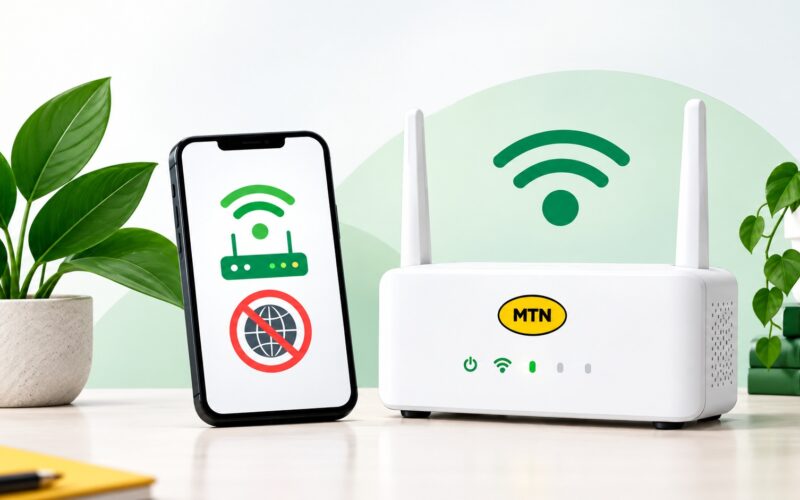
The illustrations show generic equipment and concepts. They are not screenshots of a specific MTN router interface.
1 Check the data balance on the correct number
Confirm that the SIM inside the router has an active data bundle. If you purchased data from your phone, check that you selected the router’s number as the beneficiary. A purchase on your personal line will not provide data to a separate router SIM.
MTN lists its self-service portal, myMTN app and *312*500# menu for managing broadband balances. Its guide also lists *312*500*4# for checking a linked broadband device’s balance from your primary line.
Check remaining data, expiry date and bundle type. A restricted benefit, such as dedicated YouTube data, does not provide general browsing access. Use another working connection to access the app or portal if necessary.
2 Restart the router properly
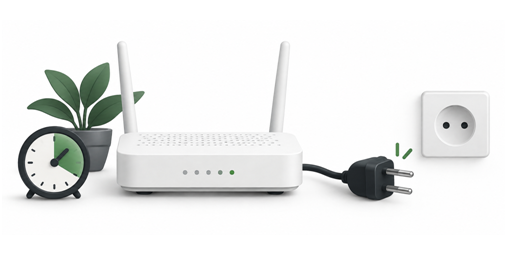
Switch the router off, disconnect its power supply and wait about 30 seconds before turning it back on. Allow a few minutes for it to start and reconnect.
For a battery-powered MiFi, unplugging the charger may leave it running. Use its power button to switch it off.
A restart can clear a temporary connection problem. It differs from a factory reset and should not erase saved settings. Microsoft includes restarting the router among its basic connectivity checks. [4]
3 Test a second device
Connect another phone or laptop to the same router and open a few unrelated websites. On a phone, temporarily switch off mobile data so it cannot quietly use the mobile network instead of Wi-Fi.
If the second device can browse, focus on the first device. Forget its Wi-Fi connection and reconnect with the correct password. Windows 11 users can also run the Network and Internet troubleshooter in the Get Help app.
If every device fails, continue with the router checks below. If only one app or website fails, investigate that service before changing the entire network.
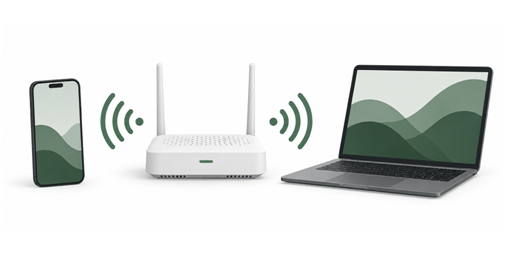
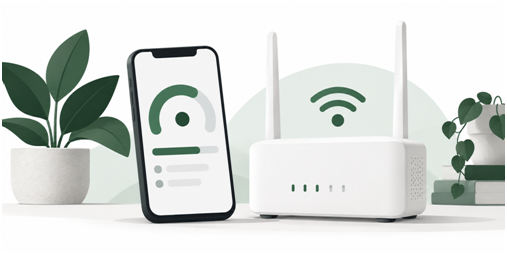
Illustration 3 Compare two devices on the same Wi-Fi connection.
4 Open the router dashboard
While connected to the router, enter the management address from its label or manual into your browser. Use your device’s administrator credentials. MTN guidance uses 192.168.0.1 for some routers and MiFi devices; check your model first.
Look for SIM detection, mobile connection status, signal strength, “No service” messages or a SIM PIN request. The dashboard is local and can often open without internet.
If it reports “No SIM,” power off before checking the SIM seating. Do not repeatedly guess an unknown PIN; contact MTN. Cellular-router manufacturer guidance identifies SIM detection and PIN status as relevant checks.
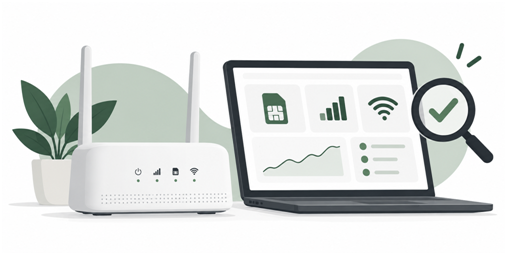
Illustration 4 Read the SIM and mobile-network status before changing settings.
5 Check the MTN APN settings
The access point name, or APN, identifies the mobile-data connection settings. MTN Nigeria publishes: profile name MTN WEB; APN web.gprs.mtnnigeria.net; username blank; password blank. If MTN supplied a different profile for your service, confirm before replacing it.
Look for APN, Profile Management or Mobile Network in the dashboard. Save a screenshot of the current configuration before making changes.
If a manual profile is needed, enter the settings carefully, save and select it. Menus differ by model. Avoid changing unrelated settings at the same time so you can identify what helped.
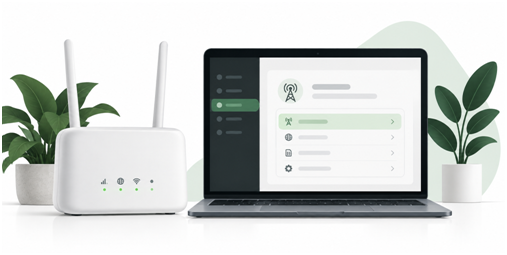
Illustration 5 Use the verified APN in the article text; interface layouts vary.
6 Check the mobile signal
Full Wi-Fi bars show the connection between your phone and the router. They do not show how well the router receives MTN’s mobile signal.
Check mobile-signal information in the dashboard. Try another indoor position, such as a higher shelf near a window, while keeping the router ventilated and out of direct sunlight.
If nearby MTN users also cannot browse, a local service problem becomes more plausible, but their experience does not confirm an outage. Ask MTN to check service availability at your location.
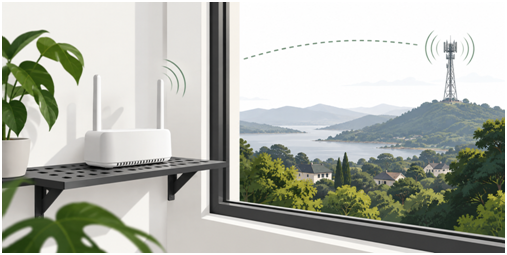
Illustration 6 Test a ventilated position with better mobile reception.
7 Review DNS if some websites fail
When the router reports an active mobile connection but websites fail, DNS is one possible cause. DNS translates website names into network addresses.
If you previously entered custom DNS settings, record them and try returning to automatic DNS. If you have never changed them, ask support for model-specific guidance before editing.
TP-Link identifies DNS as a possible cause when a cellular router has an assigned internet IP address but cannot provide internet access. This is a diagnostic possibility, not proof of your fault.
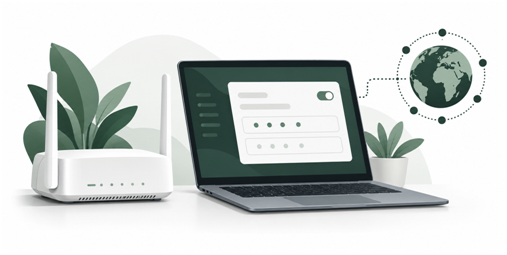
Illustration 7 Review existing DNS changes before trying new settings.
8 Leave a factory reset until later
A factory reset can remove custom Wi-Fi names, passwords and connection settings. It will not renew an expired bundle or repair a network outage.
Before resetting, record the router model and current settings, make sure its default login details are readable, and follow the instructions for that exact model.
Do not rely on a universal reset-button duration. Procedures differ. After a reset, you may need to restore the connection settings and reconnect your devices.
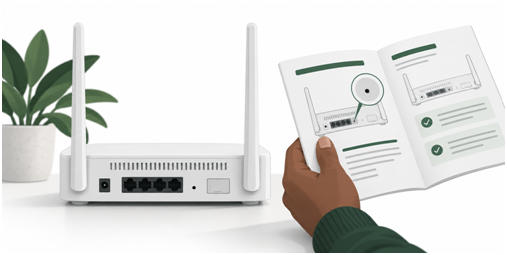
Illustration 8 Read the model’s instructions and save settings before resetting.
When to contact MTN support
Contact MTN when an active bundle is available but the basic checks do not restore browsing, or when the dashboard reports a SIM or account problem. MTN lists 300 from an MTN line and 0803 1000 300 from another network. [8]
Have the router’s phone number and model, your location, the time the fault started, the exact error and your completed checks ready. Explain whether all devices are affected. Ask support to check the line’s data service, bundle eligibility and network availability at your address.
Frequently asked questions
Why does my MTN router have full signal but no internet
First establish which signal you are seeing. Full Wi-Fi bars show a strong connection to the router. Even a strong mobile signal does not confirm an active bundle or a working internet session.
Can I access router settings without data
Usually, yes. Connect to the router and open its local management address. Internet access is generally unnecessary for its local dashboard.
Should I buy more data immediately
Check the router line’s balance and validity first. If an eligible bundle remains active, another purchase may not address the fault.
Will resetting the router fix it
A reset may resolve a configuration problem, but it cannot fix every cause. Check the bundle, restart the router and test another device before erasing settings.
Why does my phone work but my laptop cannot browse
This points toward a laptop-specific issue. Forget and reconnect to the Wi-Fi network, then use the operating system’s network troubleshooter.
What if the problem started after a power cut
Confirm that the router has stable power and has finished starting. Then restart it and check the dashboard. A power interruption alone does not prove the router is damaged.
Does this guide apply to MTN MiFi and FibreX
Several checks apply to SIM-based MiFi devices, but interfaces differ. FibreX needs a separate fibre troubleshooting process; do not apply the SIM or APN steps to a fibre connection.

The WIRED.Africa's Press Desk delivers breaking news, official announcements, and timely updates on technology, business, innovation, and digital policy. Stories published under this byline are produced through the collaborative efforts of the editorial team and trusted news sources.